
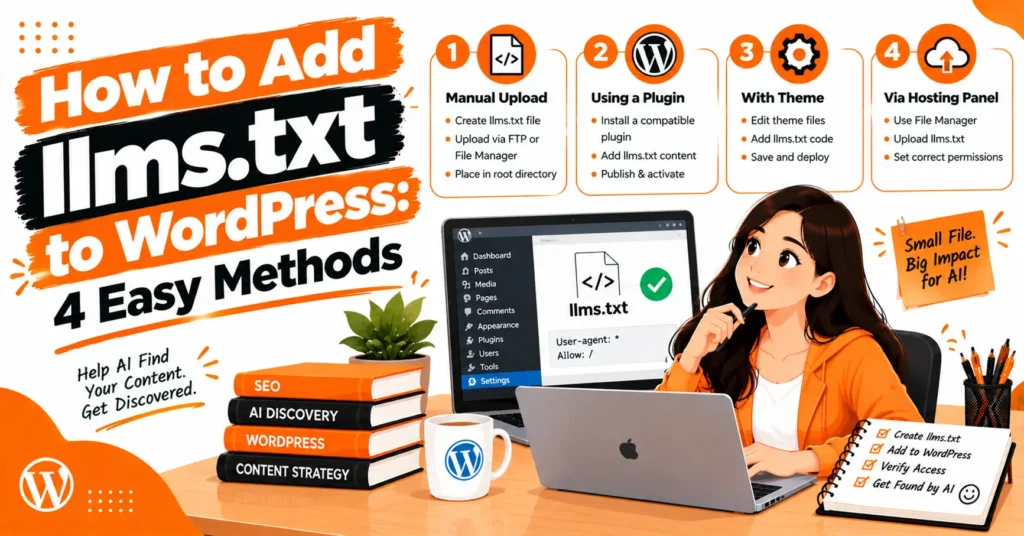
Learning how to add llms.txt to WordPress can help you organize important website resources for AI systems that support this proposed convention. An llms.txt file provides a simple way to highlight useful pages, including service descriptions, blog posts, and documentation.
You can create it using a WordPress llms.txt plugin, an existing SEO tool, or manual installation through your hosting account. In this guide, you will discover how to generate the file, configure its content, and verify that it works correctly.
You will also learn about AI search optimization, llms.txt file generation, and common errors to avoid while maintaining your website’s technical SEO.
What Is llms.txt in WordPress?
An llms.txt file is a proposed website convention designed to help compatible AI systems discover important information and navigate useful resources. It typically uses Markdown, a lightweight text format that supports headings, descriptions, and links to relevant pages.
For a WordPress website, the file is generally placed in the public root directory and accessed through a URL such as https://example.com/llms.txt. It can contain a website overview and links to selected guides, service pages, documentation, and other useful resources.
Unlike a conventional sitemap, which lists URLs in a structured format, llms.txt focuses on presenting a curated overview of important content. It is not a universally adopted web standard, and publishing the file does not guarantee that AI systems will read it or use its contents.
Why Should You Add llms.txt to WordPress?
A well-organized llms.txt file provides a concise index of resources that may be useful to compatible AI tools. For businesses, it can highlight essential service information, while publishers can use it to organize authoritative articles and reference materials.
The file may also help website owners maintain a clear overview of the content they want to make easier to navigate. Nevertheless, its potential benefits should not be confused with guaranteed search rankings or AI citations.
Quality content, crawlability, accurate information, internal linking, and a technically sound website remain fundamental to SEO.
How to Add llms.txt to WordPress: Choose the Right Method
There are several ways to implement llms.txt, and the best option depends on your website configuration and technical experience.
Using an existing SEO plugin is usually convenient, while a dedicated generator may offer additional controls. Manual creation is suitable for users who want complete control over the file.
Before starting, check whether your current setup already generates llms.txt. Two plugins attempting to manage the same URL can create conflicts or make troubleshooting more difficult. Select one primary method, configure it carefully, and verify the final output.
Method 1: Enable llms.txt Through an SEO Plugin
If your WordPress website already uses an SEO plugin with an llms.txt feature, enabling it may be the simplest approach. This allows you to manage the file through your dashboard without uploading a document manually.
Open your WordPress dashboard and navigate to your SEO plugin’s settings. Look for an AI tools, content discovery, or llms.txt option, enable it if available, and save the changes.
The exact menu location and available controls depend on the plugin and its installed version.
Some plugins allow you to customize the pages included in the generated file. Where these options are available, prioritize relevant, publicly accessible resources and exclude private, outdated, or unnecessary URLs.
After enabling the feature, open https://yourdomain.com/llms.txt in your browser. Confirm that the expected Markdown content appears and that the listed links point to the correct pages. If you cannot find the feature, consult the plugin’s current documentation rather than assuming that every version supports it.
Method 2: Install a Dedicated WordPress llms.txt Plugin
A dedicated WordPress llms.txt plugin is useful if your existing SEO setup does not provide the functionality you need. Depending on the plugin, you may be able to generate the file automatically, select content types, exclude URLs, and control how frequently the output is updated.
To install one, open Plugins → Add New Plugin in your WordPress dashboard and search for an llms.txt generator. Review its documentation, maintenance history, compatibility, permissions, and settings before installing it. Choose a plugin that explains how it creates and serves the file.
After activation, configure the website description and the content you want to include. Check whether the plugin respects your exclusions and whether automatic updates reflect changes to published pages.
Finally, visit your website’s /llms.txt URL and inspect the generated file. Avoid running several generators simultaneously, and remember that a plugin’s advertised functionality does not mean that external AI systems will necessarily use its output.
Method 3: Create an llms.txt File Manually
Manual creation is a practical alternative when you prefer to control every line of the file. You do not need advanced coding knowledge because the document uses ordinary text and Markdown formatting.
Open a plain-text editor and create a file named llms.txt. Begin with your website name as an H1 heading, add a short description, and organize important pages under meaningful headings.
For example, a simple WordPress llms.txt file could look like this:
# Example Business
> Information about our business, services, and resources.
## Important Pages
– [About Us](https://example.com/about/):
Learn about our company and experience.
– [Services](https://example.com/services/):
Explore our main services.
## Helpful Resources
– [Guides](https://example.com/guides/):
Read our practical educational content.
Replace the example URLs with real pages from your website. Use descriptive link text and brief explanations that accurately reflect each destination. Avoid adding private information, draft URLs, or pages that should not be publicly accessible.
Save the file as plain text using UTF-8 encoding where available. Check that the filename is exactly llms.txt, rather than llms.txt.txt, before uploading it to your server.
Method 4: Upload llms.txt to Your WordPress Root Directory
After creating the file, place it in the publicly served document root of your website. On many self-hosted WordPress installations, this is the directory containing folders such as wp-admin, wp-content, and wp-includes.
Sign in to your hosting control panel and open File Manager, or connect to the server using an FTP client. Locate the correct document root, upload llms.txt, and confirm that the file is stored in the intended directory.
The expected public address is usually https://yourdomain.com/llms.txt. Uploading the document only to the WordPress media library or an uploads subdirectory will not necessarily make it available at that address.
If you use a managed WordPress platform, your access to the root directory and plugin options may be restricted by your plan or hosting configuration. Check the platform’s current documentation before attempting a manual upload.
Which llms.txt Method Is Best for Your Website?
The right method depends on whether you value convenience, automation, or direct control. The following comparison highlights the main differences.
| Installation method | Best for | Main advantage | Main limitation |
| Existing SEO plugin | Website owners already using a compatible plugin | Convenient dashboard management | Feature availability varies |
| Dedicated generator | Users who want automated output | May support exclusions and scheduled updates | Requires ongoing plugin maintenance |
| Manual creation | Small websites and users wanting precise control | Full control over content | Requires manual updates |
| File Manager or FTP upload | Users with hosting access | Direct control over file placement | Incorrect placement can cause errors |
For most beginners, using an existing compatible SEO plugin is a sensible starting point. Manual creation works well when you want a short, curated file without additional plugin dependencies.
What Should You Include in an llms.txt File?
The purpose of llms.txt is to provide a useful overview rather than reproduce every URL on your website. Start with a clear title and a concise description explaining what the website offers and which topics it covers.
Organize the most important pages into relevant sections. A business website might include its main services, company information, and educational resources. A blog could highlight comprehensive guides, while a software website might prioritize product documentation and technical references.
Choose links based on their value and relevance. Avoid creating a long list of thin pages, duplicate URLs, outdated content, or unrelated resources simply to make the file appear comprehensive.
Review the proposed format and keep the document consistent with your actual website. Accurate descriptions and working URLs make the file easier to maintain, although they cannot guarantee that a particular AI system will process it.
How to Check Whether Your llms.txt File Is Working?
Once you have installed or uploaded the file, open a browser and visit https://yourdomain.com/llms.txt. Replace the example domain with your actual website address and confirm that the expected content appears.
For a more detailed test, inspect the HTTP response using browser developer tools or a command-line utility. An HTTP 200 response is generally expected when the file is successfully served, but you should also check that the returned content is actually your llms.txt document.
Review the Markdown structure and test several listed URLs. Confirm that the links lead to the intended public pages and that no private or incorrect information has been included.
If you have recently changed the file, clear relevant WordPress, hosting, or CDN caches before testing again. This helps ensure that you are seeing the latest version rather than an older cached response.
Common llms.txt Problems and How to Fix Them?
A 404 error usually indicates that the requested file cannot be found at the expected address. Check the document root, filename, plugin settings, and upload destination. If the file is generated automatically, confirm that the generator is active and has completed its setup.
If the file displays HTML instead of Markdown, inspect the URL and server response to determine whether WordPress is returning a page template or an error page. Check any relevant caching, rewrite, or security rules that might affect the response.
Duplicate content can occur when multiple tools attempt to generate the same file. Disable unnecessary generators and verify which implementation controls the public endpoint. If you maintain the file manually, review it whenever important URLs change.
Permission errors may prevent the server from serving a manually uploaded file. Follow your hosting provider’s recommended file permissions instead of applying unrestricted permissions that could create security risks.
Finally, remember that a working file does not guarantee AI visibility. If an AI system does not reference your content, it may not support the convention, may not have accessed the file, or may select information using other methods.
llms.txt vs. llms-full.txt vs. robots.txt
Although these filenames are related to website discovery and AI accessibility, they serve different purposes. Understanding the differences helps prevent configuration mistakes.
| File | Primary purpose | Typical contents |
| llms.txt | Present a curated overview of useful website resources | Website description and selected links |
| llms-full.txt | Provide a more extensive content representation under implementations that support it | Longer or consolidated text content |
| robots.txt | Communicate crawler access rules | User-agent, allow, and disallow directives |
| sitemap.xml | Help search engines discover listed URLs | Structured XML URL entries |
The proposed llms.txt convention focuses on a readable index of important content. An llms-full.txt file may contain substantially more information, depending on the implementation, and can require additional maintenance.
Neither file replaces robots.txt or an XML sitemap. Robots.txt is not a security mechanism, and sensitive pages should be protected with authentication and proper access controls rather than relying on crawler directives.
Does llms.txt Improve SEO and AI Search Visibility?
Publishing llms.txt may provide a structured reference for AI systems that choose to use the proposed convention. However, there is no guarantee that creating the file will improve Google rankings, increase organic traffic, or secure citations in AI-generated answers.
The file should therefore be treated as an optional addition to your broader SEO strategy. Continue investing in helpful original content, descriptive titles, relevant internal links, fast and accessible pages, and technically sound site architecture.
For AI search optimization, prioritize clear explanations, accurate information, and useful resources. Make sure the pages linked from your file provide real value and remain accessible to the systems you want to reach.
Best Practices for Maintaining llms.txt
Keep your file concise, relevant, and easy to navigate. Use descriptive headings, meaningful links, and short explanations that accurately represent the pages they reference.
Review the file whenever you publish a major resource, change a URL, remove a page, or reorganize your website. If you use an automatic generator, confirm that its update behavior and exclusion settings match your requirements.
Check the public URL periodically to ensure that the file still loads correctly. Avoid including confidential information or unsupported claims, and do not treat llms.txt as a substitute for maintaining your website’s core technical SEO.
Frequently Asked Questions
1. How do I add llms.txt to WordPress without a plugin?
Create a plain-text Markdown file named llms.txt, add your website description and selected public URLs, and upload it to the website’s document root using File Manager or FTP. Then visit your domain’s /llms.txt URL to verify the file.
2. Where should llms.txt be located?
The proposed convention places the file at the website root, making it accessible through an address such as https://yourdomain.com/llms.txt. On self-hosted WordPress, this is usually the publicly served document root.
3. Is llms.txt required for every WordPress website?
No. It is an optional proposed convention rather than a requirement for running WordPress or appearing in search results. Website owners can decide whether creating and maintaining the file fits their objectives.
4. What should I include in llms.txt?
Include your website title, a concise description, and links to important public resources. Depending on your website, these might include service pages, authoritative guides, documentation, and useful reference materials.
5. What is the difference between llms.txt and llms-full.txt?
The proposed llms.txt format generally provides an overview and selected links, while llms-full.txt is used by some implementations to provide a more extensive content representation. Neither file is guaranteed to be consumed by AI systems.
Conclusion
Learning how to add llms.txt to WordPress allows you to create a structured overview of your website’s most useful resources for AI systems that may support the proposed convention. You can use a compatible SEO plugin, a dedicated generator, or manual creation and upload. Verify the file’s public URL, maintain accurate links, and fix any errors before publishing. Most importantly, treat llms.txt as a supplementary part of your SEO strategy, supported by helpful content, strong technical foundations, and a well-organized website.

James Robert
James Robert is a seasoned Off-Page SEO expert specializing in strategic link building, digital outreach, and authority growth for businesses aiming to improve search visibility and rankings. With over five years of hands-on experience, he helps brands strengthen their online presence through high-quality backlinks, niche-relevant placements, and ethical SEO practices aligned with Google’s guidelines. James’s core specialties include guest posting, blogger outreach, niche edits, brand mentions, and backlink profile optimization. He is highly skilled at building relationships with authoritative publishers and executing scalable outreach campaigns that drive long-term organic growth. As a contributor to leading marketing platforms, James regularly shares actionable insights on off-page SEO strategies, link acquisition, and sustainable ranking improvements, helping businesses achieve consistent and measurable SEO success.