
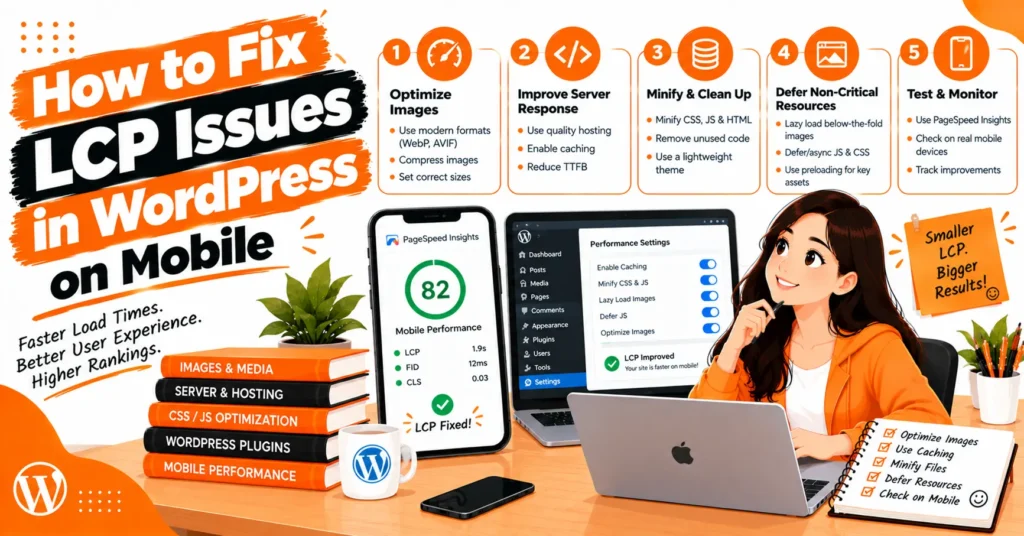
A slow mobile website can frustrate visitors, increase bounce rates, and affect the overall user experience. Learning how to fix LCP issue in wordpress mobile helps you identify the reasons behind slow loading and improve your website’s performance.
Common causes include oversized hero images, slow server response times, render-blocking CSS, and excessive JavaScript.
By optimizing Largest Contentful Paint (LCP), improving mobile page speed, and fixing Core Web Vitals issues, you can help your WordPress website load important content faster.
Using image optimization and effective page caching can further reduce delays, improve usability, and create a smoother browsing experience for mobile visitors.
What Is the Largest Contentful Paint (LCP)?
Largest Contentful Paint is a Google Core Web Vitals metric that measures the time required for the largest qualifying image, text block, or other eligible content element within the visible viewport to render.
Common LCP elements include hero images, featured images, large headings, and banner graphics.
Google classifies LCP as good at 2.5 seconds or less, needing improvement between 2.5 and 4 seconds, and poor above 4 seconds.
These thresholds are evaluated at the 75th percentile of real-user visits. Improving LCP can make a website feel faster, although it does not guarantee higher rankings on its own.
Why Is WordPress LCP Poor on Mobile?
Mobile devices often operate under slower network conditions and have less processing power than desktop computers. Large images, complicated page layouts, excessive scripts, and slow hosting can therefore create more noticeable loading delays on smartphones.
Mobile-specific issues can also affect performance. A responsive design might use a separate hero image, load background images through CSS, or apply additional styles at certain breakpoints. Identifying these differences is essential because a high mobile LCP score does not necessarily mean the entire website needs the same optimization.
How to Identify the LCP Element in WordPress
Before changing any settings, test the affected URL using Google PageSpeed Insights and select the mobile report. Inspect the LCP element diagnostic, server response recommendations, and resource-loading details to determine which content element is taking the longest to appear.
For deeper analysis, use Chrome DevTools to record a page load and inspect the Network and Performance panels. Determine whether the delay occurs before the resource request begins, during the download, or after the resource finishes downloading. This distinction helps you choose an effective solution rather than applying unrelated speed optimizations.
How to Fix LCP Issues in WordPress on Mobile
The best approach is to address the largest measurable bottleneck first. If the hero image is the LCP element, focus on image delivery and prioritization. If the image loads quickly but appears late, investigate CSS, JavaScript, fonts, and rendering delays.
1. Optimize the LCP Hero Image
Large hero images are a common source of poor mobile LCP because they may require more bandwidth than necessary. A high-resolution desktop banner can be especially inefficient when the mobile layout displays it at a much smaller size.
Resize images to appropriate dimensions, compress them, and use efficient formats such as WebP or AVIF where suitable. Implement responsive images so the browser can select an appropriate image source for the visitor’s viewport. Check the actual rendered size and image quality after compression.
2. Stop Lazy Loading the Above-the-Fold LCP Image
Lazy loading postpones image downloads until they approach the visible portion of the page. This reduces unnecessary downloads for content farther down the page, but it can delay the image that visitors need to see immediately.
If the LCP element is an above-the-fold image, ensure it is not unnecessarily lazy-loaded. Keep lazy loading enabled for appropriate below-the-fold images. Check your WordPress theme and optimization plugin because they may already apply loading rules automatically.
3. Prioritize the LCP Image With Fetch Priority
Browsers use resource priorities to decide which files should receive attention first. When the main hero image is discovered late or receives a low priority, it may take longer to appear even when its file size is reasonable.
For a confirmed LCP image, the fetchpriority=”high” attribute may help the browser prioritize its request. WordPress can automatically add image-loading hints in suitable situations, so inspect the generated HTML before making manual changes. Avoid assigning high priority to several large images because this can compete with other important resources.
4. Preload the LCP Image When Appropriate
Preloading allows the browser to request an important resource before it would otherwise discover it. This can be useful when the LCP image is referenced inside CSS or when testing reveals a substantial resource discovery delay.
However, preloading every hero image is not a reliable optimization strategy. If the browser already discovers and prioritizes the image early, an additional preload may provide little benefit. Add preload only when the resource timing indicates a genuine need, and avoid duplicate or conflicting preload declarations.
5. Reduce Render-Blocking CSS
The browser often needs to process CSS before it can display the page correctly. Large stylesheets, unused styles, and inefficient delivery of critical CSS can delay the first meaningful rendering of visible content.
Generate critical CSS or remove unused styles carefully through your optimization setup. Avoid deleting styles indiscriminately because this can break responsive layouts, navigation, or important page elements. After making changes, clear caches and inspect the mobile layout for visual problems.
6. Defer Nonessential JavaScript
Excessive JavaScript can consume processing time and interfere with rendering. Sliders, animation libraries, tracking scripts, chat widgets, and third-party embeds can be particularly expensive on mobile devices.
Defer scripts that are not required for the initial page rendering, and delay nonessential functionality when appropriate. Test navigation menus, forms, cookie banners, and interactive elements after every significant change. Delaying every script can cause functionality problems, so prioritize scripts based on their actual impact.
7. Optimize Web Fonts and Text Rendering
Custom fonts can delay large headings or paragraphs when the browser must download font files before displaying the intended typography. This can increase LCP when a text element is the largest content visible on the screen.
Reduce unnecessary font weights and styles, use efficient font formats, and consider preloading only the fonts required immediately. The font-display: swap property allows fallback text to appear while the preferred font loads. Check for layout shifts after the custom font becomes available.
Improve WordPress Server Response Time and TTFB
Time to First Byte (TTFB) measures how long it takes for the browser to receive the first byte of the server response. When the server responds slowly, the browser may not begin discovering or downloading critical page resources soon enough.
Choose reliable hosting, enable appropriate full-page caching, and investigate slow database queries or resource-intensive plugins. A content delivery network can help deliver cached resources closer to visitors, although it cannot resolve every server-side bottleneck. Measure TTFB before and after optimization to confirm whether the changes are helping.
Best WordPress Optimization Settings for Mobile LCP
WordPress optimization plugins can simplify caching, image delivery, CSS optimization, and JavaScript management. However, the best configuration depends on your hosting environment, theme, page builder, and existing optimization settings.
Use the following table to connect common performance problems with appropriate fixes.
| Performance problem | Recommended fix | What to check |
| Oversized hero image | Compress and resize it | File size and image quality |
| LCP image loads late | Check discovery and priority | Network request timing |
| Above-the-fold image is lazy-loaded | Exclude it from lazy loading | Loading attributes |
| Slow server response | Improve hosting and page caching | TTFB |
| Render-blocking stylesheets | Optimize critical CSS | Rendering delay |
| Excessive JavaScript | Defer nonessential scripts | Main-thread activity |
| Delayed text rendering | Optimize font delivery | Font requests and layout |
| Mobile layout is slow | Inspect responsive assets | Mobile-specific requests |
Configure LiteSpeed Cache for Better LCP
LiteSpeed Cache includes features for page caching, image optimization, CSS delivery, JavaScript optimization, and lazy loading. These options can improve WordPress performance when they are configured according to the website’s actual needs.
Start by verifying page caching and image optimization, then test CSS and JavaScript settings individually. Check whether the LCP image is being lazy-loaded or whether an optimization setting delays a critical resource. Purge the relevant caches after changes, and avoid using multiple plugins that duplicate the same optimization functions without a clear reason.
Optimize Elementor and Other Page Builders
Visual page builders can add stylesheets, scripts, animations, and complex layout structures. A large carousel or animated hero section may delay the main content even if the underlying image is optimized.
Simplify the first visible section, remove unnecessary animations, and replace resource-intensive sliders with lighter alternatives where practical. Inspect mobile-specific sections and background images to ensure that unnecessary desktop assets are not being loaded. Reducing above-the-fold complexity can improve rendering without requiring a complete redesign.
How to Fix LCP When Desktop Is Fast but Mobile Is Slow
When desktop LCP is good but mobile performance remains poor, compare the LCP element and resource requests on both versions. Check whether mobile uses a different image, downloads larger-than-needed assets, applies extra CSS, or depends on expensive scripts.
Test under mobile network throttling and inspect server response time as well as rendering behavior. Avoid creating separate mobile optimization rules until you understand the cause. The correct solution may be as simple as resizing an image or removing a delayed background-image request rather than changing the entire caching configuration.
How to Fix LCP Issues in WordPress Mobile Without Breaking Your Website
A safe optimization process involves making one significant change at a time and testing the result. Record the original mobile LCP score, identify the bottleneck, apply a targeted fix, and repeat the test under comparable conditions.
If performance becomes worse or the layout breaks, revert the last change and investigate conflicting settings. Pay particular attention to aggressive JavaScript delay, unused CSS removal, image lazy loading, and duplicated resource hints. Keeping a backup or staging environment available makes experimentation safer.
How to Measure and Verify LCP Improvements
After optimizing your website, clear WordPress, server, and CDN caches where applicable. Run several mobile PageSpeed Insights tests and compare the LCP timing breakdown rather than relying only on the overall performance score.
Lab data provides controlled test results, while field data reflects actual user experiences when sufficient data is available. Google Search Console can help you monitor Core Web Vitals trends over time. Field results may take time to reflect recent changes, so immediate lab improvements and longer-term real-user results should be evaluated separately.
Common LCP Optimization Mistakes to Avoid
One frequent mistake is enabling every optimization setting at once. Aggressive CSS removal, excessive JavaScript delay, duplicate preloads, and incorrect lazy-loading rules can create new problems and make it difficult to identify which change was effective.
Another mistake is focusing only on image compression while ignoring resource discovery or server response time. A smaller image will not solve a slow database query, and caching will not necessarily fix a hero image that the browser discovers too late. Diagnose the bottleneck, apply the relevant fix, and measure the result.
Frequently Asked Questions
What Is a Good LCP Score for Mobile?
A good LCP score is 2.5 seconds or less. Scores between 2.5 and 4 seconds need improvement, while scores above 4 seconds are considered poor. Google evaluates these thresholds at the 75th percentile of real-user visits.
Does LiteSpeed Cache Automatically Fix LCP?
LiteSpeed Cache can improve caching, image delivery, and resource optimization, but it does not automatically resolve every LCP issue. You still need to identify the LCP element, check server response time, and configure the relevant settings correctly.
Should I Lazy-Load the LCP Image?
Generally, an image visible immediately when the page loads should not be unnecessarily lazy-loaded. Prioritize the critical image appropriately while retaining lazy loading for suitable images farther down the page.
Can Elementor Cause High Mobile LCP?
Yes. Complex layouts, background images, carousels, animations, and additional CSS or JavaScript can delay rendering. Simplifying the mobile layout and optimizing critical resources can help improve performance.
Why Does My Mobile PageSpeed Score Change Between Tests?
Results can vary because of differences in network conditions, server load, cache state, and device processing. Run repeated tests under similar conditions and compare the detailed diagnostics to identify consistent improvements.
Conclusion
Improving mobile performance starts with identifying the actual cause of the loading delay. Optimize the LCP image, prioritize critical resources, reduce rendering delays, improve server response time, and configure WordPress caching carefully. Following these steps for how to fix LCP issue in wordpress mobile can help your website load more efficiently, improve the visitor experience, and work toward Google’s recommended Core Web Vitals thresholds.

James Robert
James Robert is a seasoned Off-Page SEO expert specializing in strategic link building, digital outreach, and authority growth for businesses aiming to improve search visibility and rankings. With over five years of hands-on experience, he helps brands strengthen their online presence through high-quality backlinks, niche-relevant placements, and ethical SEO practices aligned with Google’s guidelines. James’s core specialties include guest posting, blogger outreach, niche edits, brand mentions, and backlink profile optimization. He is highly skilled at building relationships with authoritative publishers and executing scalable outreach campaigns that drive long-term organic growth. As a contributor to leading marketing platforms, James regularly shares actionable insights on off-page SEO strategies, link acquisition, and sustainable ranking improvements, helping businesses achieve consistent and measurable SEO success.