
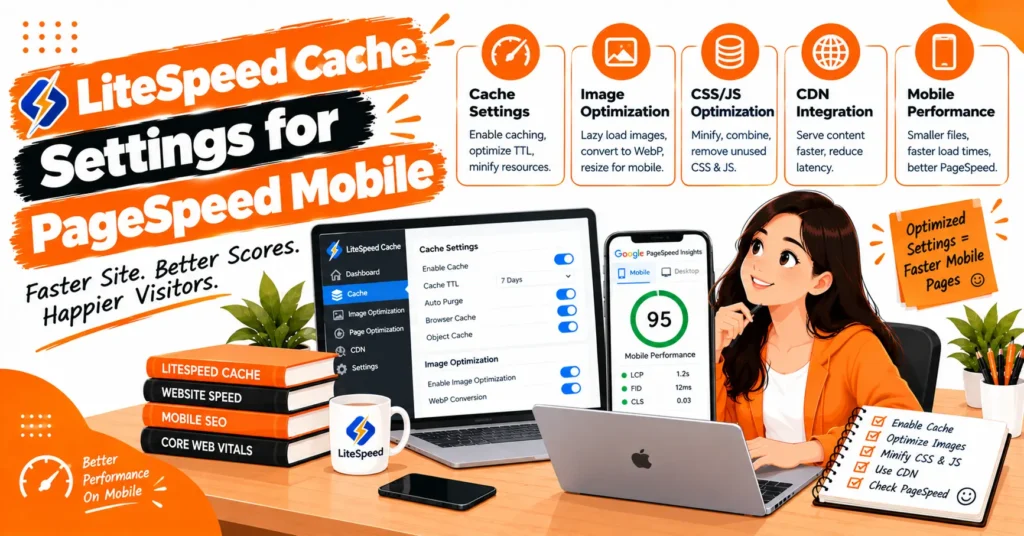
Improving mobile website speed is essential for a better user experience and stronger SEO performance. The right LiteSpeed Cache settings for PageSpeed mobile can help WordPress websites load faster by optimizing caching, images, CSS, and JavaScript.
However, enabling every option does not guarantee better results. Understanding how each setting works helps prevent broken layouts, loading delays, and compatibility issues.
By configuring Core Web Vitals, reducing render-blocking resources, optimizing image compression, and improving JavaScript execution, you can address common mobile performance problems.
This guide explains practical settings, testing methods, and troubleshooting techniques to help improve your website’s mobile speed efficiently.
What Is LiteSpeed Cache and How Does It Improve Mobile Performance?
LiteSpeed Cache is a WordPress optimization plugin that provides server-level caching when supported by the hosting environment, along with front-end optimization features.
Page caching can reduce the work required to generate a page for each request, while browser caching allows eligible resources to be reused on subsequent visits.
The plugin can also reduce CSS, JavaScript, HTML, and image payloads through supported optimization features.
These improvements may help mobile visitors receive content faster, but the actual results depend on hosting infrastructure, theme design, plugin compatibility, and the resources used on each page.
Why Is Your Mobile PageSpeed Score Low?
A low mobile PageSpeed score often indicates that the browser is waiting for important resources, processing too much JavaScript, or downloading unnecessarily large files. Large hero images, page-builder assets, third-party scripts, web fonts, and slow server responses can all delay the first meaningful content displayed to visitors.
Mobile testing also uses more constrained device and network conditions than typical desktop testing. Consequently, a page that appears fast on a powerful computer may perform poorly under mobile conditions.
Before changing settings, inspect the specific diagnostics reported for the affected URL rather than applying a generic optimization preset.
Best LiteSpeed Cache Settings for PageSpeed Mobile
The most effective configuration depends on your website, but the following table provides a practical starting point for many WordPress installations. These recommendations should be tested against your theme, hosting environment, and existing performance configuration.
| Setting | Recommended starting point | Why it matters |
| Enable Cache | ON, when supported | Serves cached pages to eligible visitors |
| Cache Mobile | OFF for most responsive themes | Avoids unnecessary separate mobile cache variations |
| CSS Minify | ON, then test | Reduces CSS file size |
| CSS Combine | OFF initially | Avoids unnecessary file combining and potential conflicts |
| Generate UCSS | Test when appropriate | Removes unused CSS through supported processing |
| Load CSS Asynchronously | Test carefully | May reduce render-blocking delays |
| JS Minify | ON, then test | Reduces JavaScript file size |
| JS Combine | OFF initially | Avoids potential script-order issues |
| Load JS Deferred | Test carefully | Allows eligible scripts to execute later |
| Delay JS | Test selectively | Postpones nonessential script execution |
| HTML Minify | ON, then test | Removes unnecessary HTML characters |
| Image Optimization | Enable appropriate compression | Reduces image payload |
| Lazy Load Images | ON for off-screen images | Delays unnecessary image downloads |
| Browser Cache | ON when properly supported | Reuses eligible static resources |
Change one setting or closely related group of settings at a time. Purge the relevant caches, verify the page visually, and run repeatable mobile tests before moving to the next optimization.
Configure Page Caching and Mobile Cache Correctly
Start by opening the Cache section in your WordPress dashboard. Enable page caching if your hosting environment supports it, and review cache exclusions for logged-in users, shopping carts, personalized content, and other pages that should not be served as shared cached responses.
For most responsive websites, Cache Mobile can remain disabled because the same page structure is delivered to desktop and mobile browsers.
A separate mobile cache may be necessary in specific configurations, but enabling it without a clear requirement can introduce unnecessary cache variations or inconsistent output.
Browser caching is useful for static assets such as stylesheets, scripts, and images. Confirm that cache headers are configured correctly and that updated resources become available when you publish changes. Correct cache invalidation is important because visitors should not continue receiving outdated page assets.
Optimize CSS and Eliminate Render-Blocking Resources
CSS minification reduces unnecessary characters in stylesheets, potentially lowering their transfer size. Enable CSS Minify and check important page elements, including navigation menus, headings, forms, responsive columns, and page-builder sections.
Unused CSS removal can further reduce the amount of styling the browser needs to process. However, generating unique CSS and critical CSS may require additional processing and supported services. If parts of the page lose their styling, review exclusions, regenerate the affected files, and test the change again.
CSS Combine should not automatically be enabled simply because it appears to reduce the number of requests.
Modern HTTP protocols can handle multiple resources efficiently, and combining files can introduce compatibility problems. Keep it disabled initially and compare results before considering a different configuration.
Optimize JavaScript Without Breaking Functionality
JavaScript optimization is particularly important for mobile responsiveness because complex scripts can occupy the browser’s main thread.
Minification reduces file size, while deferred or delayed execution can prevent nonessential scripts from competing with critical content during the initial page load.
These features must be configured carefully. Aggressive delays may prevent navigation menus, search functions, sliders, consent banners, or contact forms from working correctly. After each change, test important interactions on both mobile and desktop.
If a problem appears, identify the affected script and test the relevant exclusion instead of disabling all JavaScript optimization.
A smaller script payload is useful only when the website continues to function correctly.
Optimize Images and Improve LCP
Images frequently contribute to slow Largest Contentful Paint because large files take longer to download and display. Use appropriate image compression and modern formats such as WebP where supported. Resize images to match their display dimensions instead of sending oversized desktop images to mobile devices.
Lazy loading should generally be used for images below the initial viewport. The main above-the-fold image, particularly when it is the LCP element, should not be indiscriminately lazy-loaded.
Consider whether the browser can discover it early and whether appropriate preload or fetch-priority hints would help.
Always specify image dimensions to reserve space before an image loads. This helps prevent unexpected layout movement and supports a more stable browsing experience.
Review background images, embedded media, and large visual sections as well as ordinary image elements.
Understand Guest Mode and Guest Optimization
Guest Mode and Guest Optimization influence how LiteSpeed Cache handles eligible visitors and optimization behavior. Their effect depends on the plugin version, hosting environment, cache configuration, and website functionality.
If mobile scores fluctuate unexpectedly, test these features independently. Purge the relevant caches, compare fresh and repeat visits, and check whether the delivered HTML, CSS, or JavaScript differs between sessions. Review generated optimization files if the problem persists.
Do not assume that Guest Mode is the cause of every mobile performance issue. A declining score may also result from server load, third-party scripts, stale resources, or inconsistent testing conditions. Isolating one variable at a time makes the cause easier to identify.
Improve Mobile Core Web Vitals
Core Web Vitals evaluate loading performance, responsiveness, and visual stability. Improving these metrics requires identifying the underlying problem instead of focusing only on the overall PageSpeed score.
| Metric | Good threshold | Common optimization opportunities |
| Largest Contentful Paint (LCP) | 2.5 seconds or less | Improve server response, optimize the main image, reduce render-blocking resources |
| Interaction to Next Paint (INP) | 200 milliseconds or less | Reduce heavy JavaScript and long main-thread tasks |
| Cumulative Layout Shift (CLS) | 0.1 or less | Set image dimensions, stabilize fonts, avoid unexpected content insertion |
LCP measures how quickly the main visible content appears. INP evaluates how responsive a page is to user interactions, while CLS measures unexpected movement of visible elements. A website may improve its loading score without fully resolving interaction or layout problems.
For the best results, investigate each metric independently and combine LiteSpeed Cache optimization with appropriate theme, code, image, and hosting improvements.
How to Test LiteSpeed Cache Settings in Google PageSpeed Insights?
Testing is essential because the same configuration can produce different results across websites. Open Google PageSpeed Insights, enter the exact page URL, and run a mobile test. Record the performance score, LCP, INP where available, CLS, and the most important diagnostics.
After making changes, purge the relevant caches and repeat the test under similar conditions. Compare the results rather than relying on a single measurement.
Also test the website on a real mobile device to confirm that the layout, navigation, images, and interactive features still work.
Laboratory tests help identify technical bottlenecks, while field data, when available, reflects real users over time. Field metrics may not change immediately after a configuration update. Use both types of evidence to evaluate short-term improvements and longer-term user experience.
How to Fix Common Mobile PageSpeed Problems?
When LCP is slow, inspect the main visible image, server response time, render-blocking stylesheets, and resource discovery. If images are oversized or the browser discovers the main image late, adjust image delivery and loading priority rather than relying exclusively on caching.
When JavaScript delays interactions, review heavy scripts, unnecessary third-party tools, and long main-thread tasks. For layout shifts, investigate missing dimensions, font loading, advertisements, and dynamically inserted content. Each symptom requires a targeted fix.
If the page becomes visually broken after optimization, disable the most recently changed feature and purge the relevant cache. Once the original behavior returns, reintroduce the optimization carefully and apply exclusions only where necessary.
Why Does Mobile Performance Drop After a Few Hours?
A website that initially performs well but later becomes slower may have inconsistent cache behavior, changing resource delivery, or server-side performance problems. Compare the same URL across fresh sessions, repeat visits, and different testing times.
Check cache expiration, optimization-file generation, server resource usage, and third-party scripts.
If the problem appears after enabling CSS or JavaScript optimization, test those settings separately and inspect the affected resources. If performance declines regardless of optimization settings, investigate hosting load, database queries, external requests, and network variability.
A changing PageSpeed score does not automatically mean that the cache has failed. Repeatable testing and consistent symptoms provide stronger evidence than one unusually high or low score.
Common LiteSpeed Cache Mistakes to Avoid
Enabling every feature at once makes it difficult to identify the source of a problem. Aggressive JavaScript delays, unnecessary file combining, and unused CSS removal without testing can cause broken layouts or missing functionality. Start with conservative settings and increase optimization gradually.
Testing only the homepage is another common mistake. Blog posts, landing pages, service pages, and conversion pages can load different resources and use different templates. Test representative URLs and important user journeys before considering the configuration complete.
Finally, do not treat a perfect laboratory score as a guarantee of better rankings. Website speed contributes to user experience, but search visibility also depends on content relevance, technical accessibility, competition, and other factors. Prioritize genuine improvements instead of chasing an arbitrary score.
Additional Ways to Improve WordPress Mobile Speed
LiteSpeed Cache cannot fix every problem caused by inefficient code or inadequate hosting. If the server response is slow, investigate server resources, database queries, unnecessary plugins, and application configuration. Caching can reduce repeated processing, but it cannot eliminate every underlying bottleneck.
Page builders, analytics tools, chat widgets, advertising scripts, and embedded videos may add substantial resources. Remove integrations that are not needed, avoid loading nonessential scripts too early, and optimize fonts and media.
A content delivery network can also help serve eligible static resources to visitors across different regions.
Review your website periodically after major theme, plugin, or content changes. Performance optimization is an ongoing process because new assets and functionality can introduce bottlenecks that did not exist when the original configuration was tested.
Frequently Asked Questions
What are the best LiteSpeed Cache settings for PageSpeed mobile?
Start with page caching where supported, CSS and JavaScript minification, image optimization, browser caching, and lazy loading for off-screen images. Test unused CSS removal, asynchronous CSS, and JavaScript delays carefully because their effects vary between websites.
Should I enable Cache Mobile in LiteSpeed Cache?
Usually not for a standard responsive theme that serves the same page structure to mobile and desktop visitors. Enable it only when your website requires separate mobile caching and the configuration is supported by your environment.
Can LiteSpeed Cache guarantee a 100 mobile PageSpeed score?
No. The score depends on hosting, code quality, image delivery, third-party scripts, and testing conditions. The plugin can improve performance, but some bottlenecks require changes outside its settings.
Why is my mobile score lower than my desktop score?
Mobile testing uses more constrained network and device conditions. Large images, heavy JavaScript, render-blocking resources, and slow server responses can have a greater impact under these conditions.
Does LiteSpeed Cache improve Core Web Vitals?
It can help by reducing server work, resource sizes, and loading delays. However, improving INP and CLS may require additional JavaScript optimization, stable layouts, and changes to third-party scripts or theme behavior.
Conclusion
The right LiteSpeed Cache settings for PageSpeed mobile can improve WordPress loading speed when each feature addresses a genuine performance bottleneck.
Configure caching carefully, optimize images and CSS, test JavaScript delays, and monitor Core Web Vitals instead of enabling every option indiscriminately. Use repeatable PageSpeed tests, verify real mobile functionality, and investigate persistent server or resource problems.
A measured, compatibility-focused approach creates a faster and more reliable website while supporting a better user experience and stronger technical SEO.

James Robert
James Robert is a seasoned Off-Page SEO expert specializing in strategic link building, digital outreach, and authority growth for businesses aiming to improve search visibility and rankings. With over five years of hands-on experience, he helps brands strengthen their online presence through high-quality backlinks, niche-relevant placements, and ethical SEO practices aligned with Google’s guidelines. James’s core specialties include guest posting, blogger outreach, niche edits, brand mentions, and backlink profile optimization. He is highly skilled at building relationships with authoritative publishers and executing scalable outreach campaigns that drive long-term organic growth. As a contributor to leading marketing platforms, James regularly shares actionable insights on off-page SEO strategies, link acquisition, and sustainable ranking improvements, helping businesses achieve consistent and measurable SEO success.